This month, EventCAT introduces new tools for monitoring audio, managing bilingual captions, customizing Live View, and joining OnlineMeeting sessions from mobile devices. These updates are designed to give organizers more control during live events while making multilingual content easier for audiences to access and follow.
Clearer Audio Monitoring
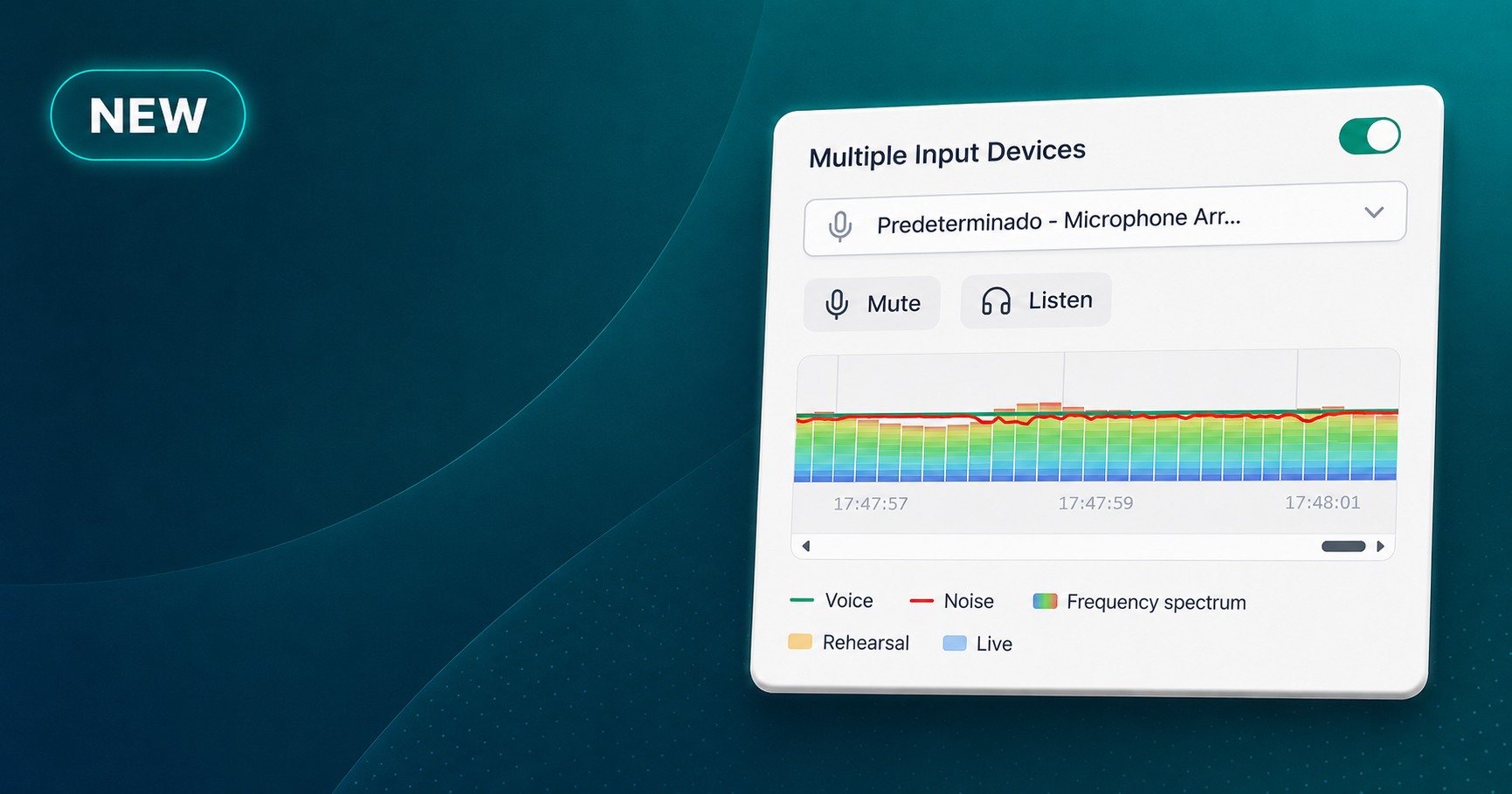
The Session Controller now provides a clearer view of the audio EventCAT receives. Organizers can monitor the selected input, pause audio transmission when needed, and check voice and noise levels through a live graph.
✔️ Use Listen to monitor the current audio input
✔️ Select Mute without disconnecting the microphone
✔️ Check voice and background noise levels in real time
✔️ Confirm audio quality before rehearsal or during a live session
These controls make it easier to identify audio issues early and prepare the input for more accurate subtitles and translations.
Smarter Captions for Bilingual Sessions
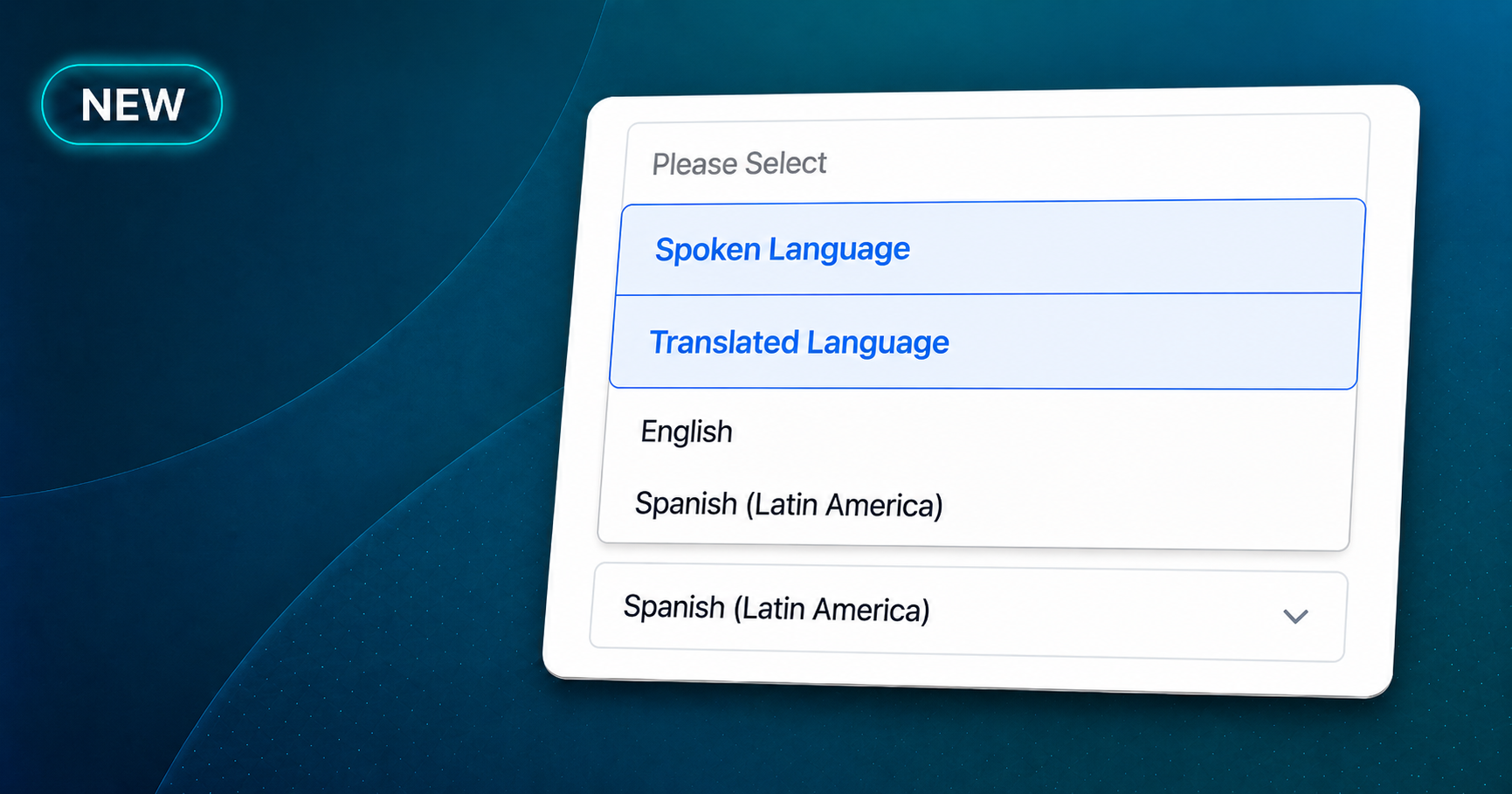
Conference sessions using exactly two target languages can now display captions based on the language currently being spoken. In Live View, organizers can choose between Spoken Language and Translated Language, and EventCAT will update the subtitles as the conversation changes.
✔️ Follow bilingual conversations without manual language switching
✔️ Display captions in the spoken or translated language
✔️ Keep subtitles aligned with the conversation line by line
✔️ Create a more natural viewing experience for multilingual audiences
Please note that text-to-speech is not available while these dynamic language options are active.
More Flexible Live View Customization
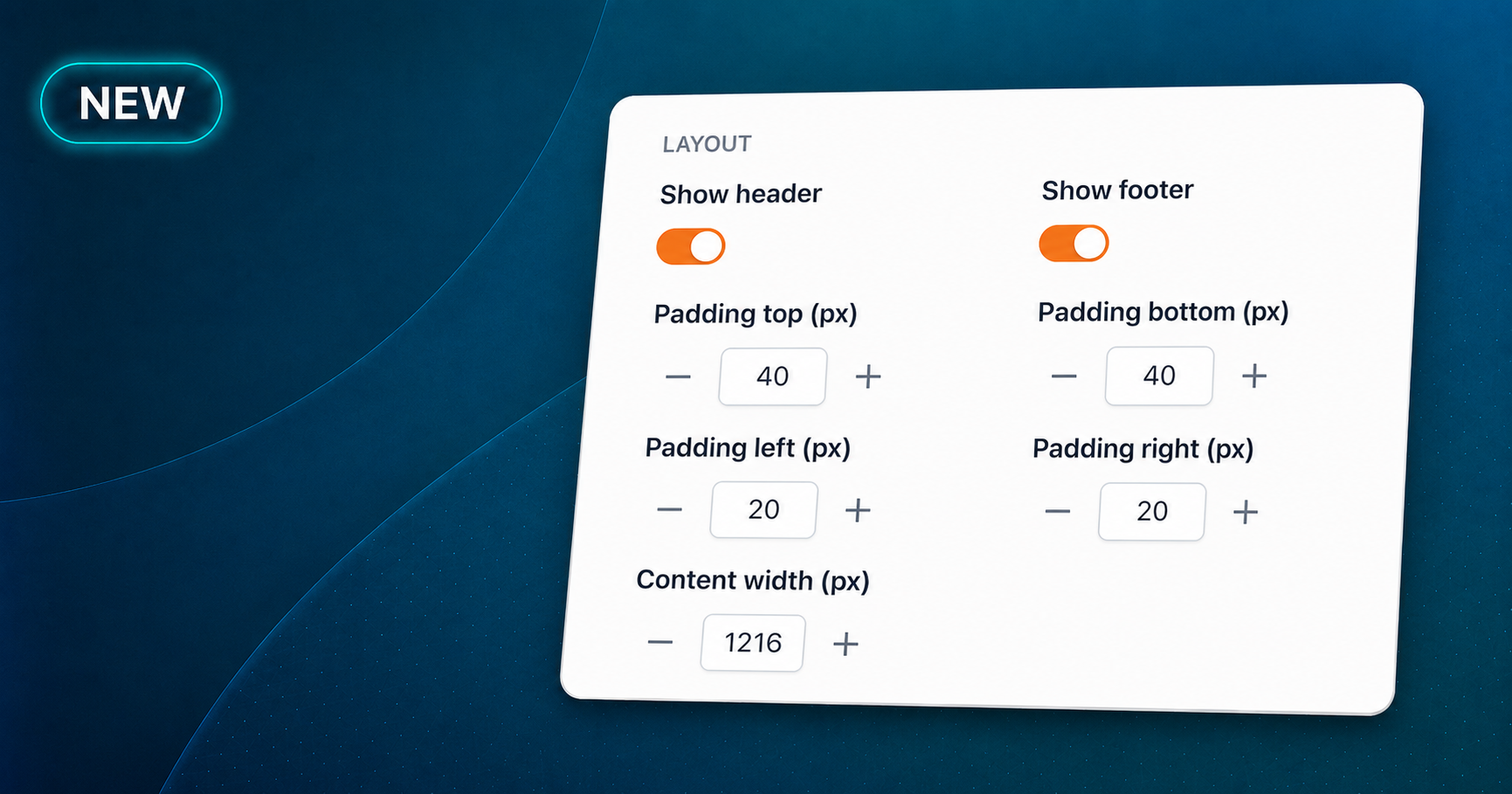
Organizers now have more control over how subtitles appear on screens at a venue, during a presentation, or in a broadcast. The new Display Options panel brings the main layout and branding settings together in one place.
✔️ Adjust the header, footer, content width, and screen padding
✔️ Customize fonts, spacing, colors, and language backgrounds
✔️ Add a logo that matches the event or organization
✔️ Save the layout and reuse it when Live View is opened again
These options make it easier to create a subtitle display that feels like a consistent part of the event rather than a separate tool.
Faster Mobile Access with a QR Code
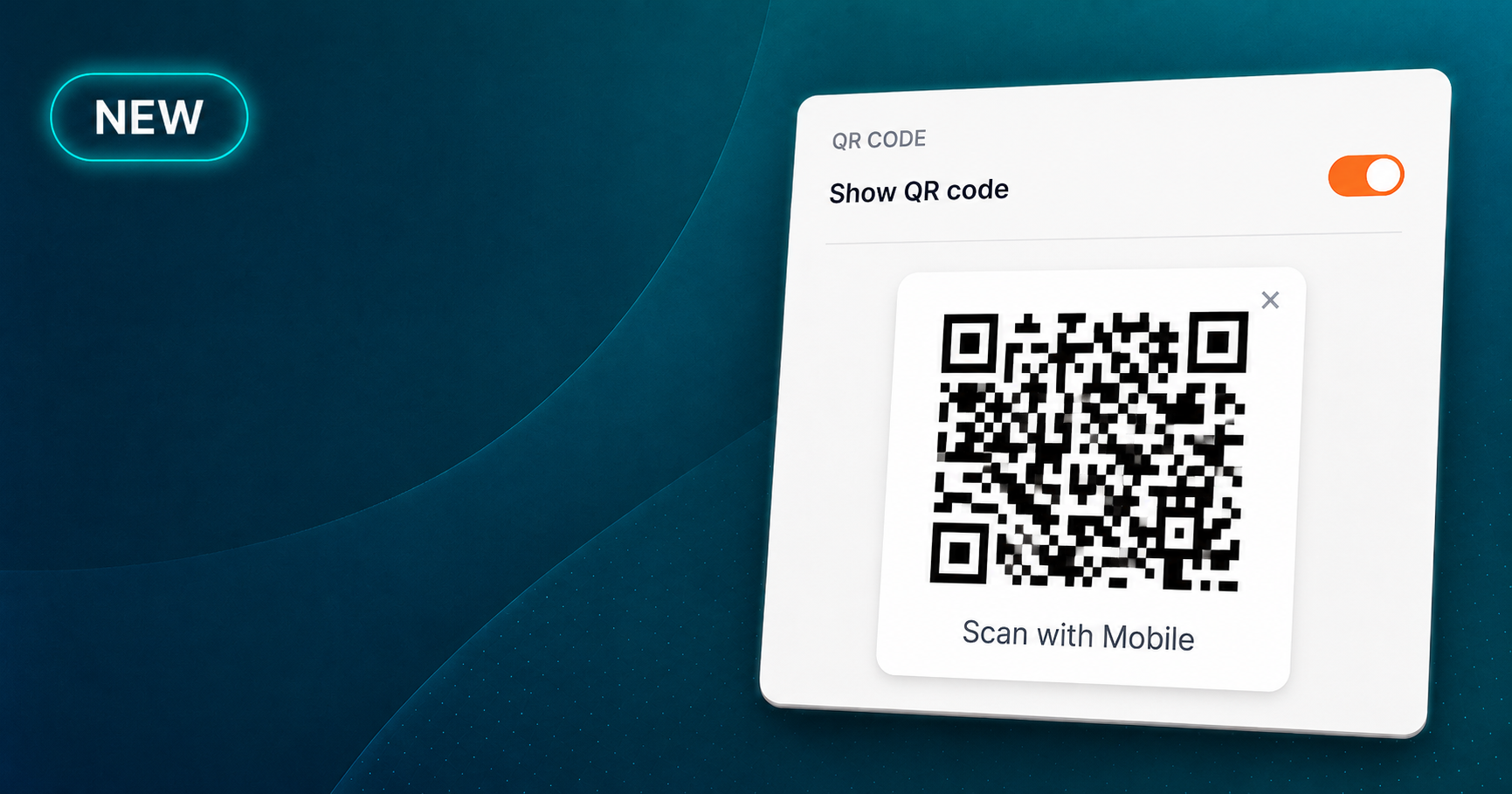
OnlineMeeting participants can now move from a desktop computer to a mobile device by scanning a QR code. The same meeting opens directly on the phone, without requiring the participant to find or resend the original invitation link.
✔️ Open the same OnlineMeeting on a mobile device
✔️ Switch devices without searching for the meeting link
✔️ Hide the QR code when more screen space is needed
✔️ Restore it from Settings → Show QR code
The QR code preference is saved for future visits, making it easier for participants to access meetings in the way that works best for them.
Built for Smoother Live Sessions
This release focuses on the practical details that help multilingual events run smoothly: reliable audio, captions that follow bilingual conversations, flexible subtitle displays, and easier access across devices.
Whether you are preparing backstage, managing a session in progress, or helping attendees reconnect from their phones, EventCAT now gives you more control with fewer unnecessary steps.
Need more help? contact@eventcat.com
Was this article helpful?
That’s Great!
Thank you for your feedback
Sorry! We couldn't be helpful
Thank you for your feedback
Feedback sent
We appreciate your effort and will try to fix the article