Before starting a session, you can check the connected audio devices (built-in mic, external mic, wireless mic, AirPods, etc.) via the Audio Input section on the right sidebar of the EventCAT controller page.
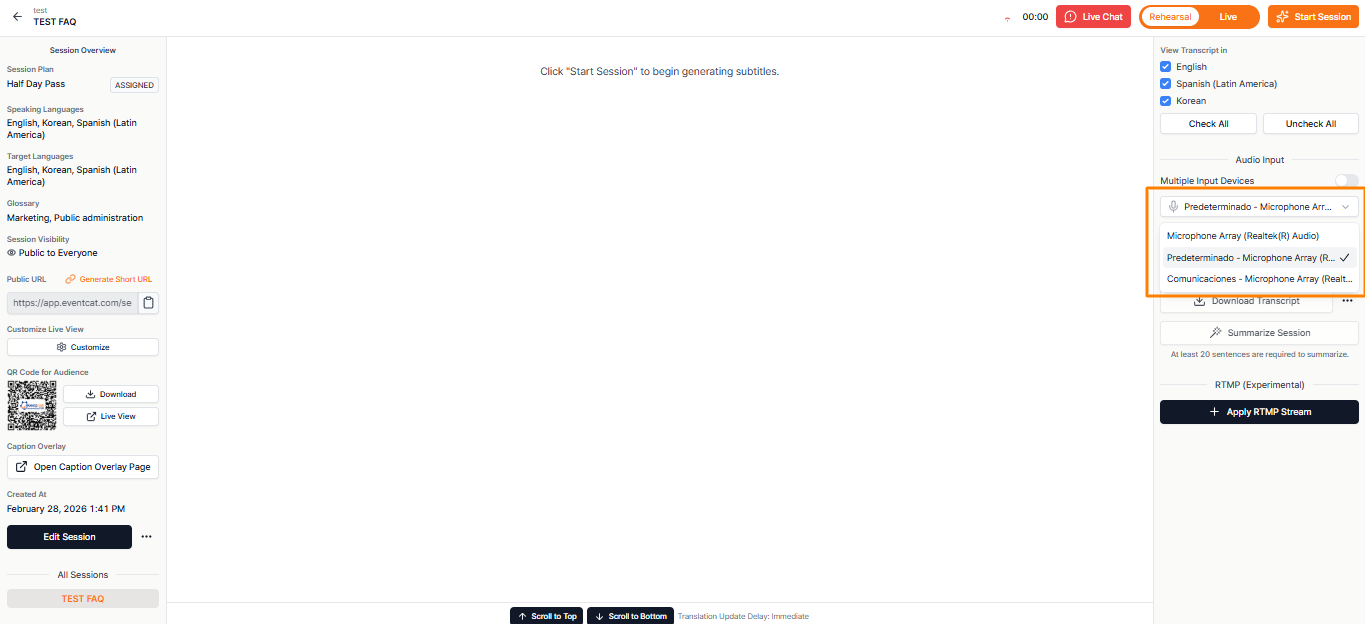
How to Check Microphone Connection:
Go to the Audio Input section on the right sidebar.
Review the list of audio devices currently connected to your laptop or computer.
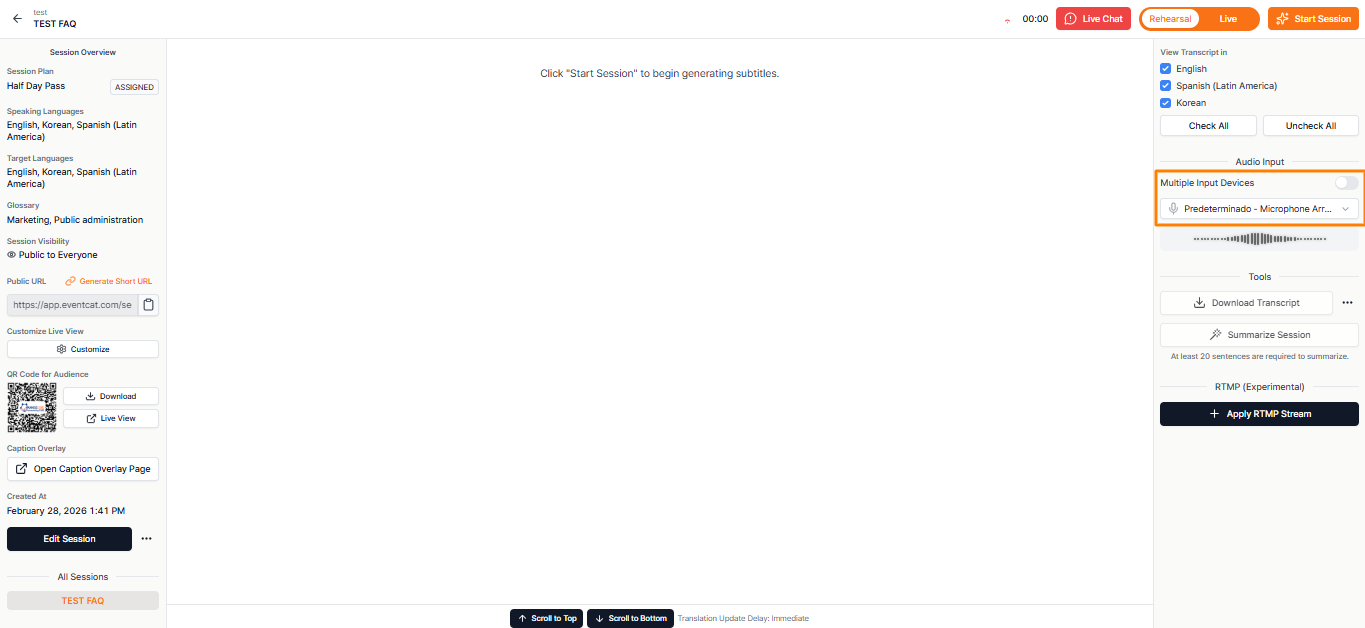
Select the microphone(s) you wish to use (e.g., built-in mic, external mic, wireless mic, AirPods, etc.). If the gray frequency sound bar under Audio Input moves in real time, it means EventCAT is properly detecting the microphone audio.
Important Notes:
- If the sound bar does not move, EventCAT cannot hear or translate your voice. Please check the following:
Make sure the microphone device is properly connected in your computer’s Control Panel or System Settings
Make sure microphone permissions are enabled in your web browser
- If EventCAT cannot detect audio, real-time translated subtitles will not be provided.
- In environments with significant background noise, speech recognition accuracy may decrease. This may result in incorrect or distorted subtitles. For best results, use the microphone in a quiet environment and keep it close to the speaker.
Related Article:
Was this article helpful?
That’s Great!
Thank you for your feedback
Sorry! We couldn't be helpful
Thank you for your feedback
Feedback sent
We appreciate your effort and will try to fix the article