Why are Glossaries Important for Real-Time Interpretation?
Glossaries are essential tools for ensuring accurate and consistent interpretation of specialized terms, acronyms, brand names, and industry-specific language during live meetings. By helping EventCAT’s AI translation engine understand and apply these terms correctly, glossaries improve translation quality, reduce errors, and enhance the overall participant experience.
Creating a Glossary in EventCAT OnlineMeeting
Go to EventCAT:
Select OnlineMeeting as your product.
Creating a Glossary from Scratch:
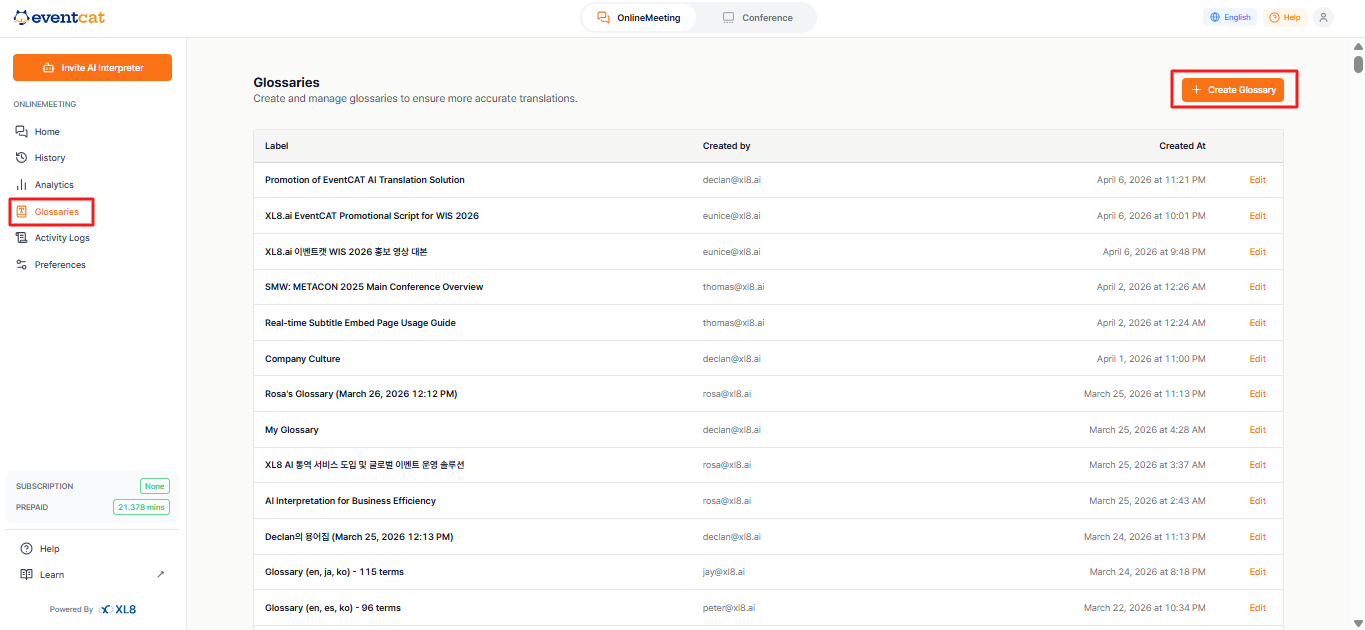
Click Glossaries in the left-hand menu and select Create Glossary.
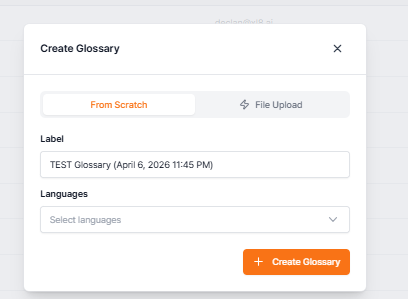
Enter a title for your glossary.
Choose the languages you want to use (e.g., English, Spanish, Korean).
Click Create Glossary to proceed.
* You’ll now see a spreadsheet-style editor where you can input key terms, definitions, and relevant phrases. This method is best if your team has an internal glossary or translation team.
Creating a Glossary by Uploading a File:
If you already have a glossary document (PDF format), you can upload it directly.
Click File Upload, choose your PDF, and click Upload and Next.
EventCAT will process the file, which might take up to 2 minutes.
File Upload Guidelines:
Maximum file size: 50MB per file
Up to 4 files allowed per meeting
Supported format: PDF, Microsoft PowerPoint, or Microsoft Word.
Using the Glossary in OnlineMeeting
Set Up the Meeting:
Go to the Invite AI Interpreter screen when scheduling your meeting.
Select your preferred translation model and fill in the meeting details.
Add a Glossary:
In the Glossary section, you can:
Use an Existing Glossary (you can upload up to 10 glossaries).
Create a New Glossary by selecting either the From Scratch or File Upload options.
Alternatively, you can proceed without a glossary, but using one is recommended for accuracy.
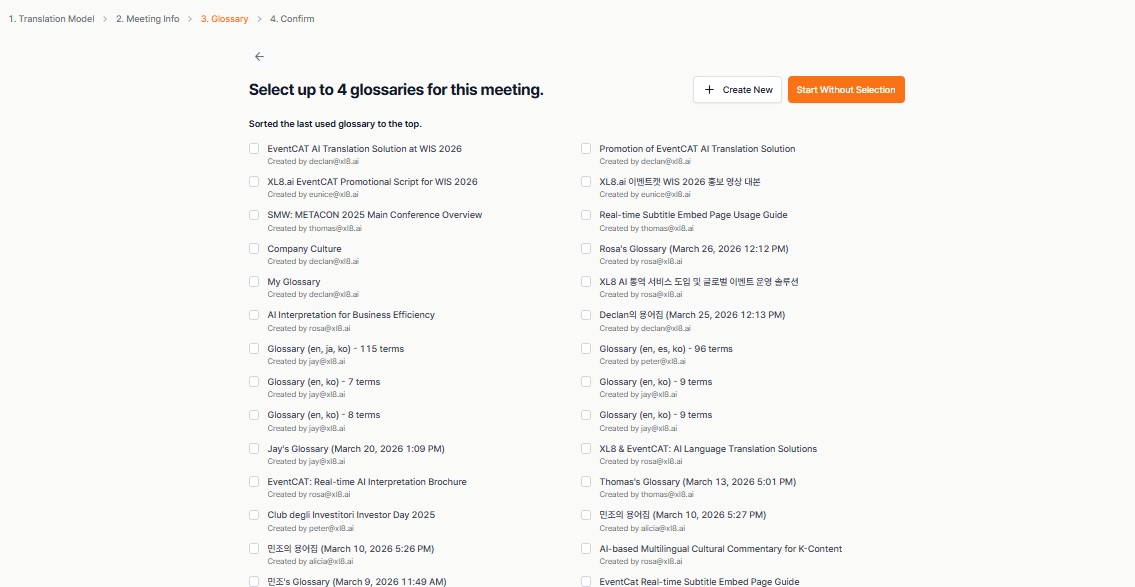
By adding a glossary, you ensure more accurate translation during your meetings, making the process more seamless and improving the overall experience for your participants.
If this guide does not resolve the issue, users can reach out for further assistance:
Go to EventCAT Help Desk
Need more help? contact@eventcat.com
Was this article helpful?
That’s Great!
Thank you for your feedback
Sorry! We couldn't be helpful
Thank you for your feedback
Feedback sent
We appreciate your effort and will try to fix the article